Guide Aster
How to use Aster.
Everything Aster does, from installing it to the last setting. Each part takes a minute to read.
- 01Install and activate
- 02Caption a whole video
- 03Captions and big text
- 04Styles: one press for the whole look
- 05Fonts
- 06Colour, outline, box and shadow
- 07How words arrive and leave
- 08Sound effects
- 09Copy a style, keep a look
- 10Vertical, square and horizontal
- 11Settings
- 12If something is not right
Install
Install and activate
- Quit DaVinci Resolve.
- Open the download, then Install Aster. It asks for your Mac's password once.
- Open DaVinci Resolve, a project and a timeline, then Workspace › Workflow Integrations › Aster
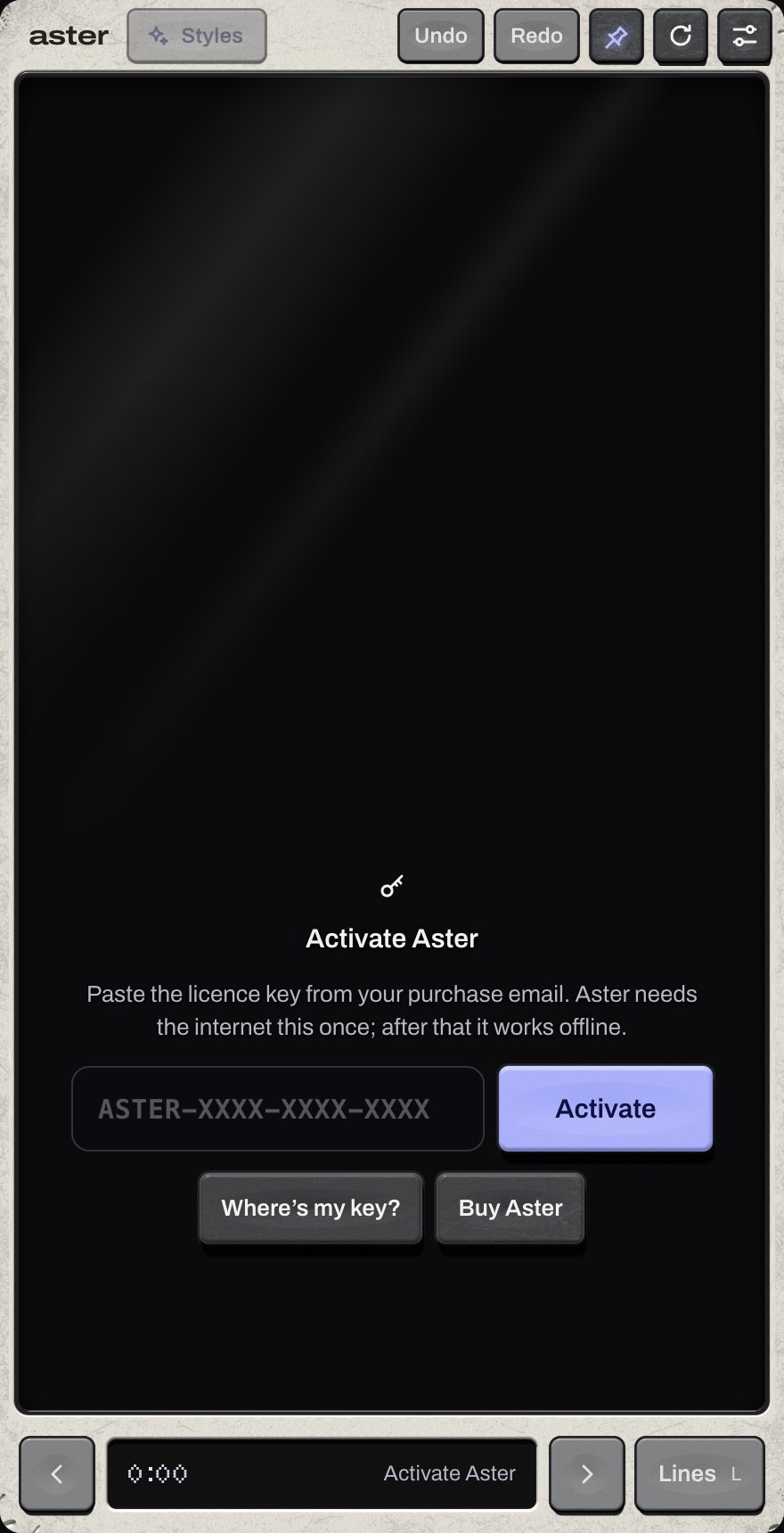
- Paste your licence key (it starts with ASTER) and press Activate. Aster needs the internet this once; after that it works offline. Your key works on two Macs.
- The first time only, DaVinci has to let Aster in: Preferences › System › General, set External scripting using to Local, save, and reopen DaVinci. Aster shows these steps too if it needs them.
Aster needs DaVinci Resolve Studio on a Mac. The free version of Resolve cannot run panels. On a Studio older than 21.1, Aster also needs Python 3: it offers to install it for you.
Your first video
Caption a whole video
Open the timeline you want captioned and press Caption this video (or ↵). Every word lands on the frame it is said.
If the timeline has no subtitles yet, DaVinci listens to it first and writes every word down, on your Mac, with Resolve's own transcription. The meter fills as it listens, then Aster captions it. The language is worked out by itself; to choose it, press Language under Caption this video. Subtitles you made yourself in DaVinci are used as they are.
The picture in Aster follows DaVinci's playhead. Click a line on the picture, or select its clip in DaVinci's timeline, to change it. Lines (L) lists every line in the video.
Delete a caption by mistake? A key on the picture says how many spoken words have no caption. Press Caption them and only those words are captioned again.
Big text
Captions and big text
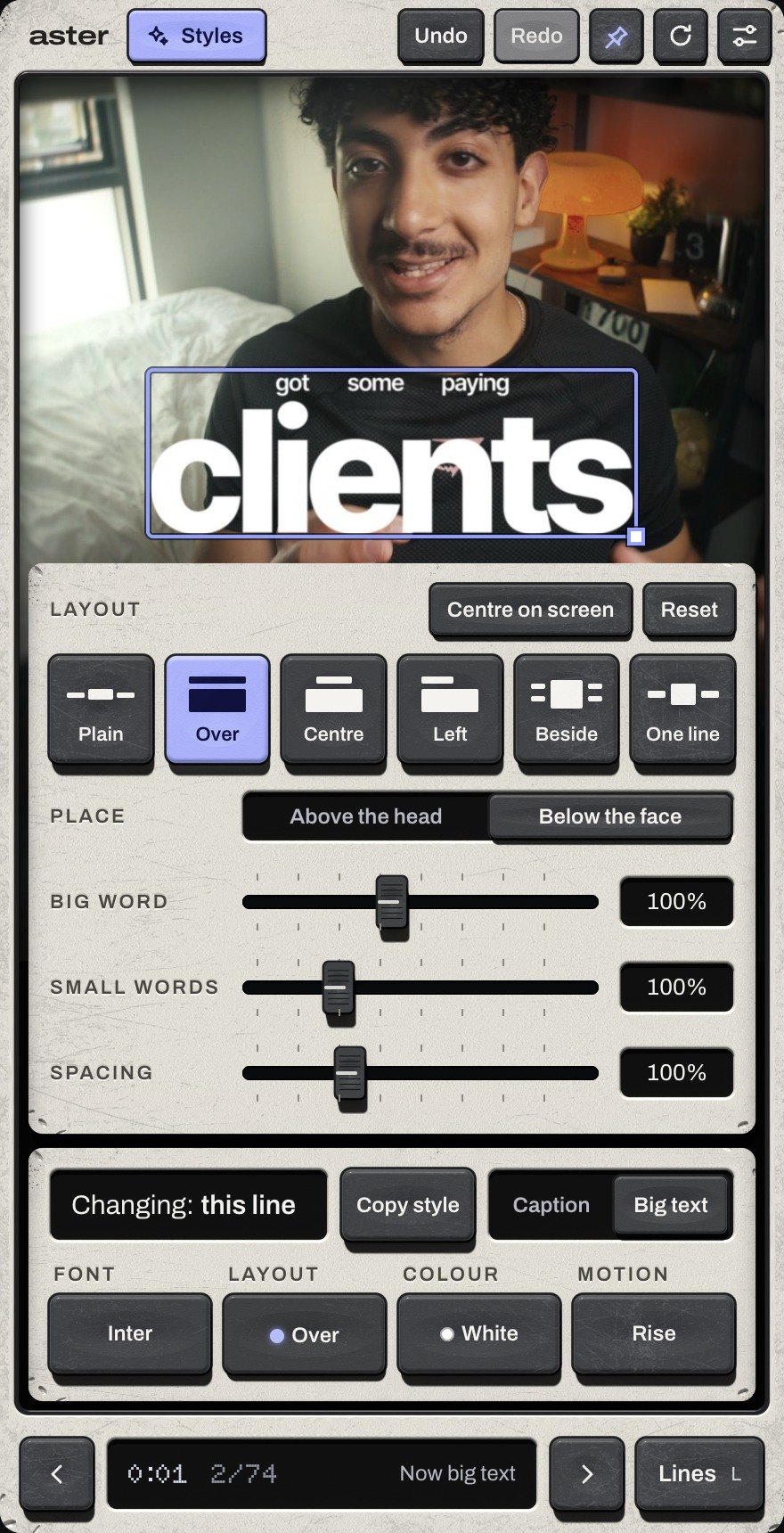
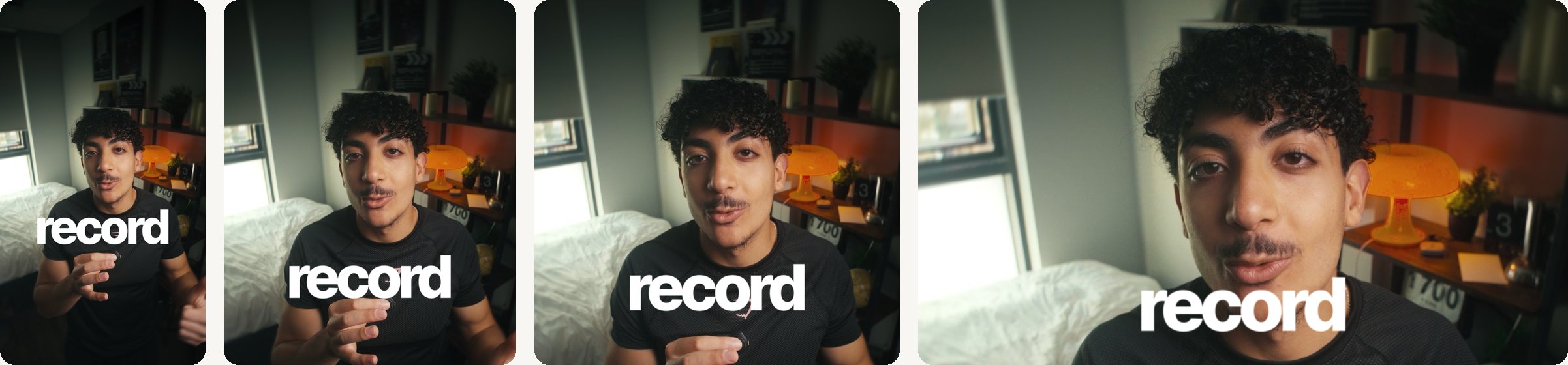
Every line is either a caption (words in a row) or big text (one word or two made big, with the rest of the line around it). Press Big text, or B, to make a line big; Caption turns it back. A line stays where it is either way.
- Layout
- How big text is arranged: Over (small words above the big word), Centre, Left, Beside and One line. Plain is a caption.
- Place
- Above the head or Below the face. On a vertical video big text starts above the head; on wider shapes, below.
- Move
- Drag a line on the picture. It snaps to the centre, its usual place and other text; hold ⌘ to move freely, Shift to keep to one direction. Arrows nudge it a pixel at a time.
- Rows
- ⌥↑ ⌥↓ move a chosen word up or down a row. Drag between rows to change the gap.
- Words
- Double-click a word to retype it. [ and ] make it land a frame earlier or later.
Styles
Styles: one press for the whole look
The blue Styles key (S) opens every ready-made style. With nothing chosen it changes the whole video; with lines chosen, just those; with a word chosen, just that word.
- Moving
- Simple, Box first (a box lands as the word is said, the word takes its place), Typewriter (typed letter by letter, with a cursor of its own), Select (selected like text in a document), Highlight and Underline.
- Finish
- Flat or Shine: bevelled letters with a gradient, sharp white glints and a soft glow. Shine starts in orange; change the colour after.
- Type
- Font pairings set for a look: Poster, Editorial, Side note, Headline, One line.
- Yours
- Looks and styles you saved, and Last look: the video you last styled, in any project.
New videos start in your last look (Settings › New videos), so every video you make looks like you without setting it up again.
Font
Fonts
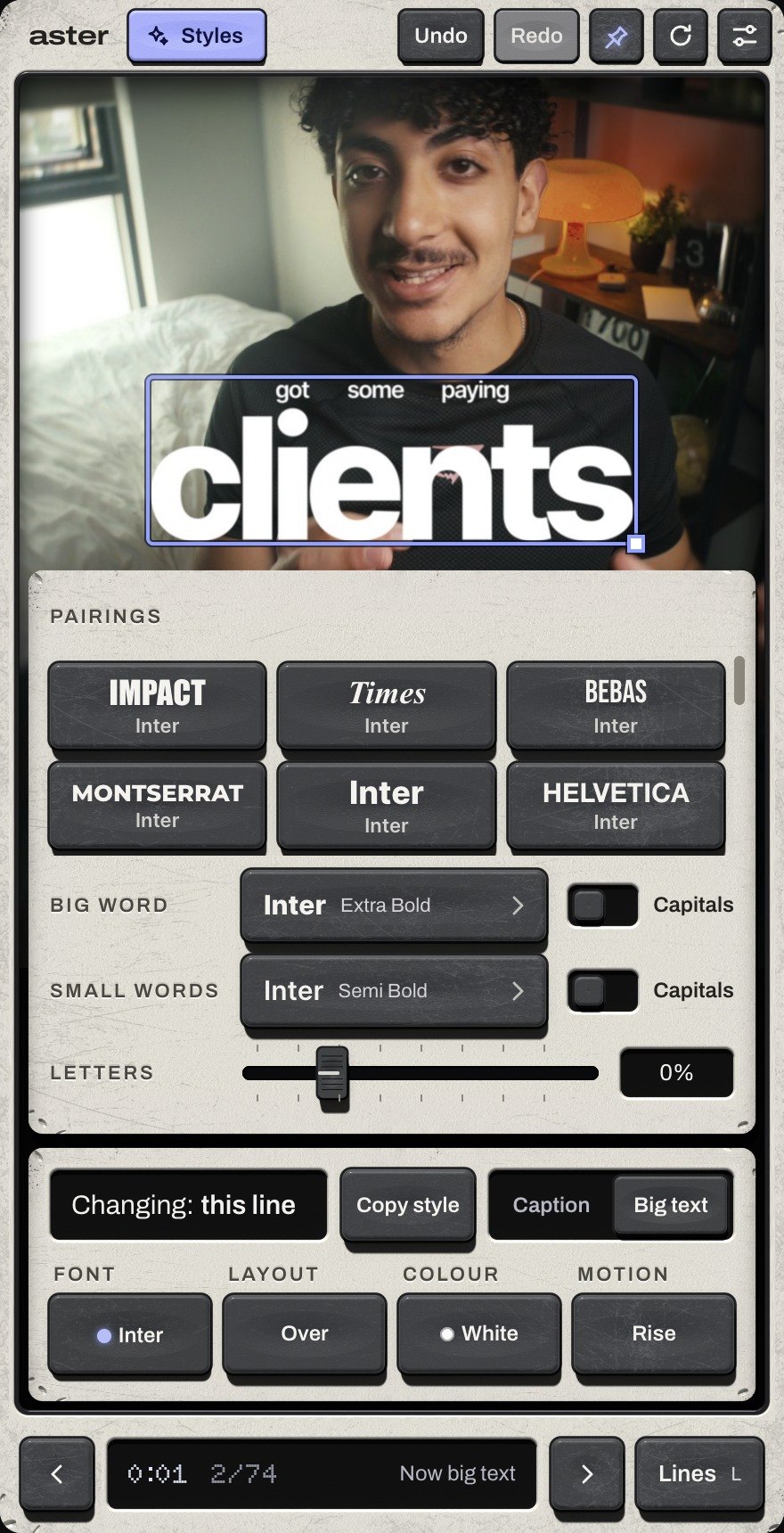
Font picks a pairing (a font for the big word and one for the rest) or any font on your Mac, for the big word, the small words, or one chosen word. Fonts you pick are kept under Recent in every video. Capitals and letter spacing are set here too.
Colour
Colour, outline, box and shadow
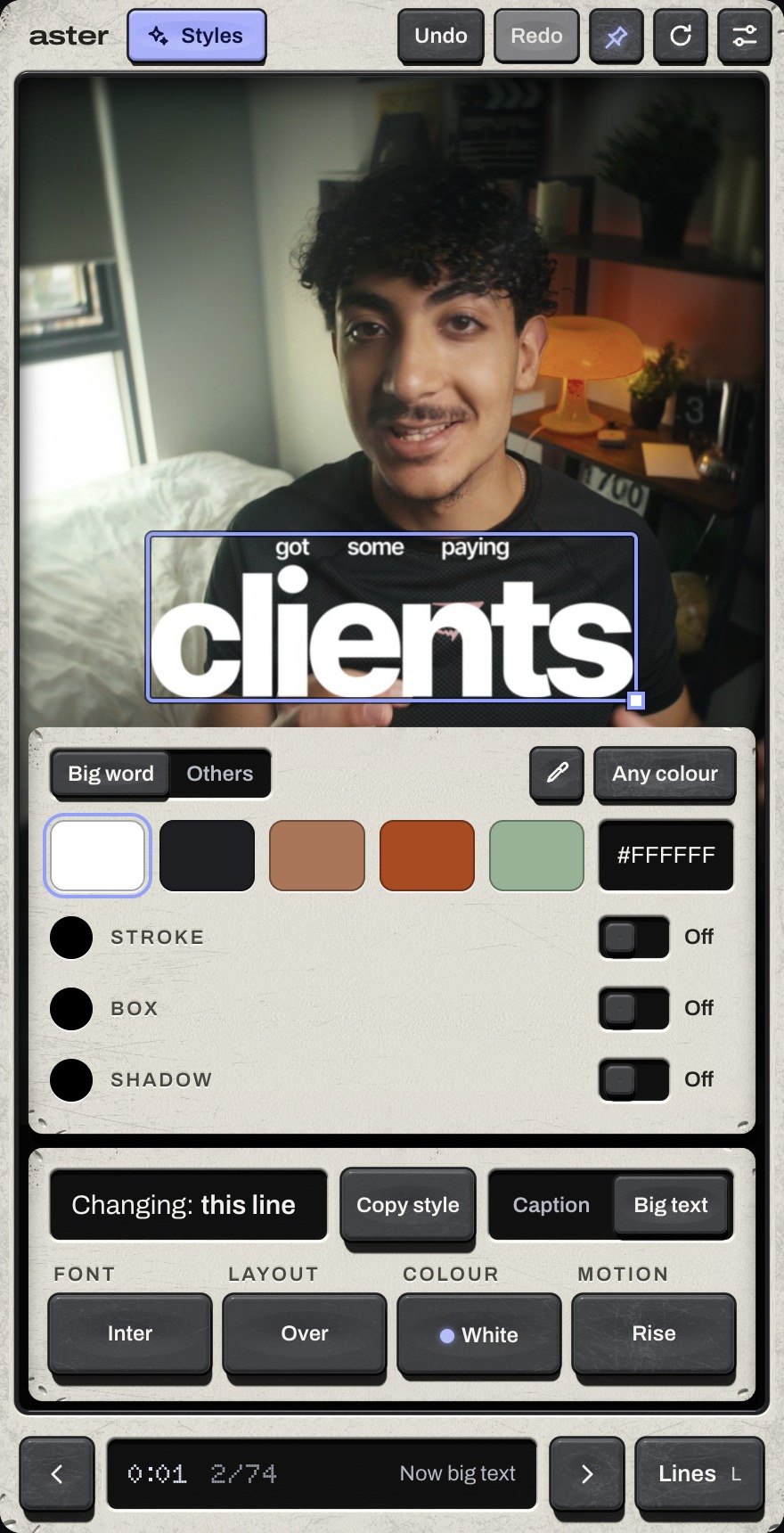
Colour sets the big word and the other words, and switches on an outline, a box and a shadow, each with its own colour. Pick from the colours of your own footage, any colour, or a hex code.
- Box kinds
- Plain, Sweep, Select, Underline and Strike, behind the whole line or just its big word.
- Shape
- Corners (square to pill), Sides and Top (the room round the words), and Thickness for lines under or through.
Aster remembers how you last set each kind of box and the colour of the words on it, and uses that next time. Settings › Memory forgets it.
Motion
How words arrive and leave
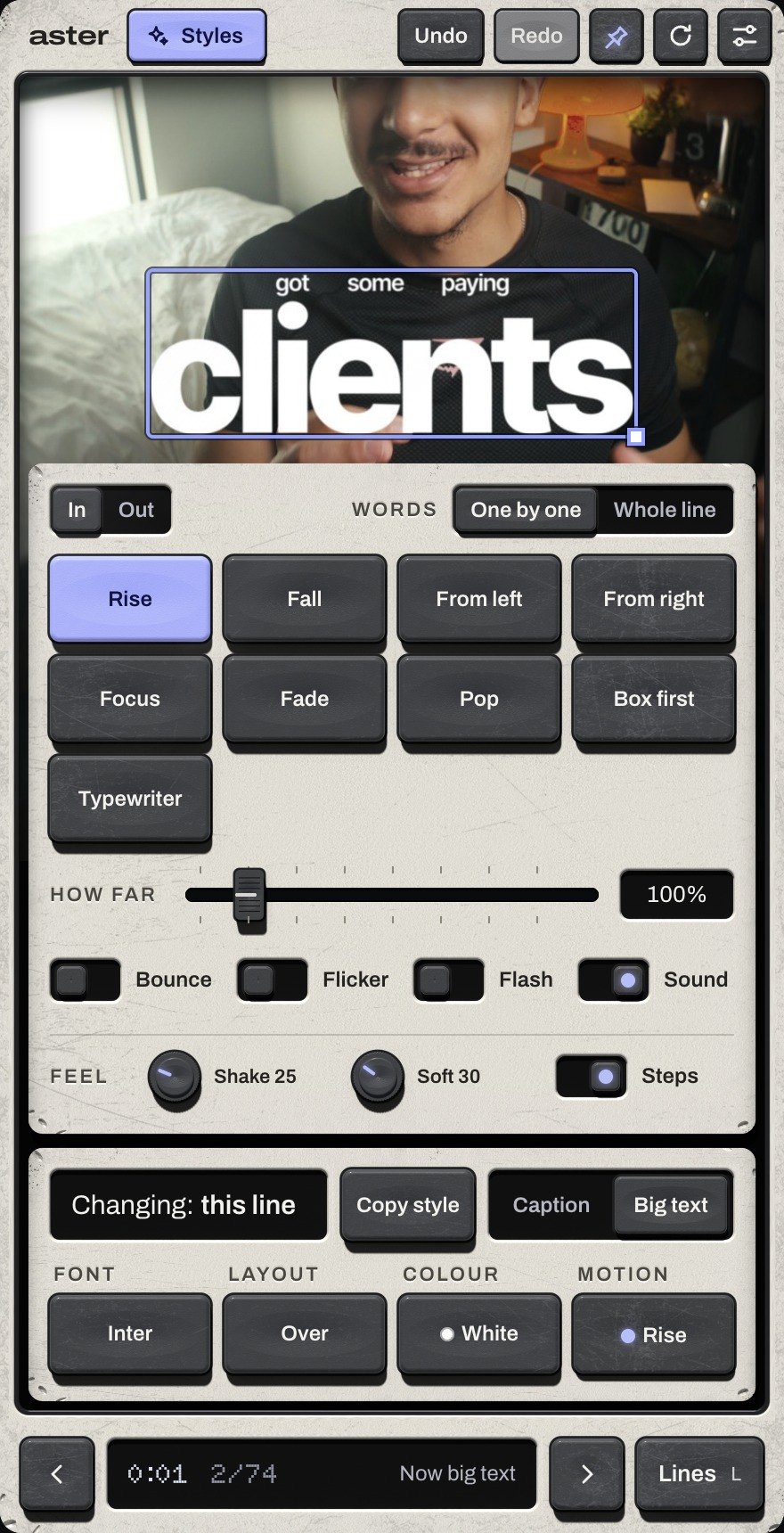
- In
- Rise, Fall, From left, From right, Focus, Fade, Pop, Box first and Typewriter. How far sets the travel. Words appear One by one as they are said, or the Whole line at once.
- Out
- Cut, Fade, Rise away, Fall away, To the left, To the right and Blur away.
- Extras
- Bounce, Flicker and Flash on the big word (or any chosen word), and Sound.
- Feel
- For the whole video: Shake (a slight tremble), Soft (a touch of blur) and Steps (movement in stop-motion steps).
Sound
Sound effects
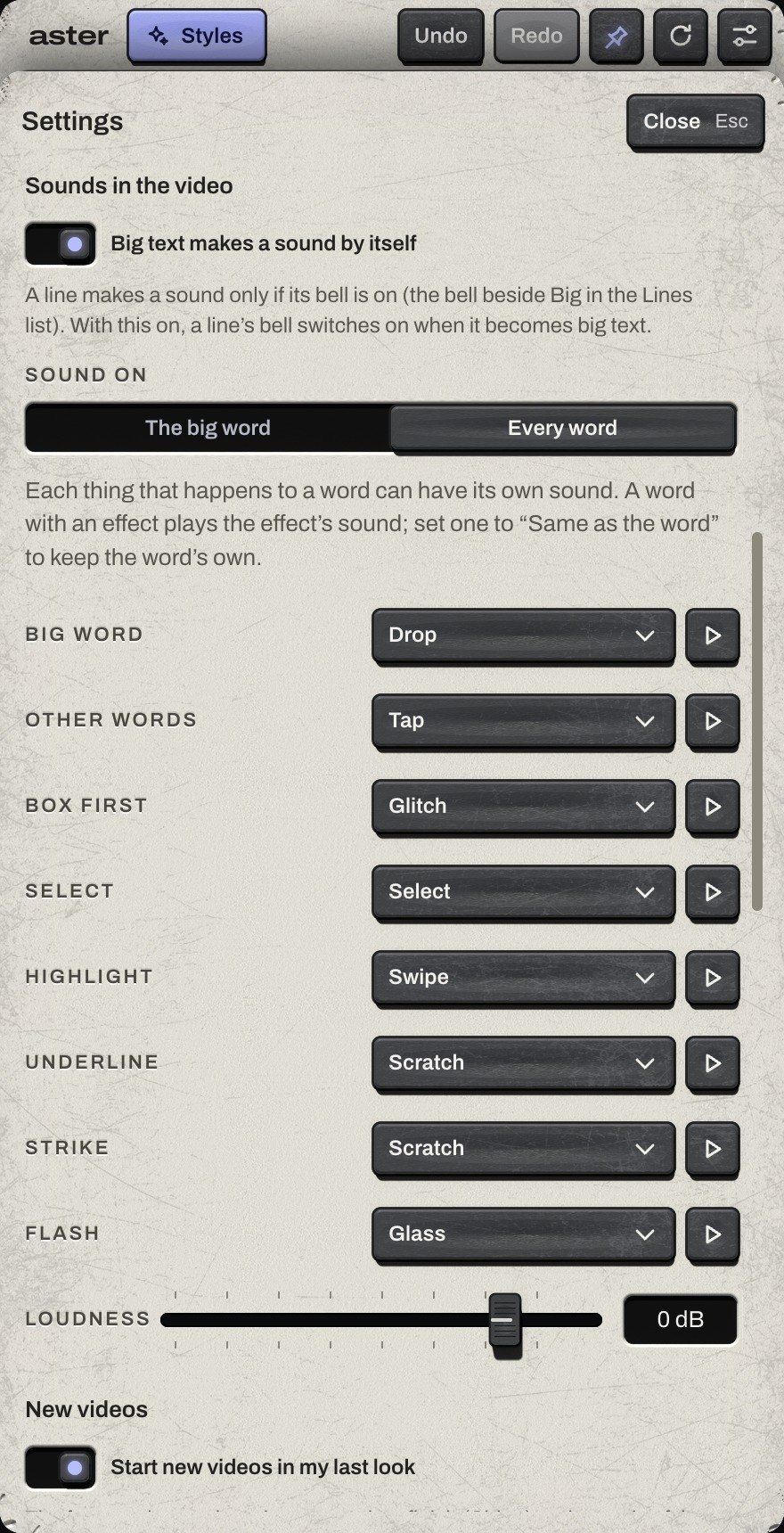
Aster puts a sound on the words as they land, on its own audio track. Settings has a row for the big word, the other words and each effect (Box first, Select, Highlight, Underline, Strike, Flash), each with its own sound. Choose a built-in sound, None, or a file of your own: WAV, MP3, M4A, AIFF or FLAC, from Epidemic Sound or anywhere.
Sounds need an empty audio track. If your timeline has none, Aster asks you to add one: right-click an audio track's name › Add Track.
Copy and paste
Copy a style, keep a look
Copy style (⌘C) picks up a line's look; click other lines to paste it (⌘V), and choose which parts go: layout, font, colour, motion, shadow, size, sound. Save a style or a whole look under a name and it waits under Styles › Yours in every project.
⌘Z undoes anything, even a change to the whole video, and ⇧⌘Z redoes it. H hides a line without deleting it; ⌫ deletes it.
Any shape
Vertical, square and horizontal
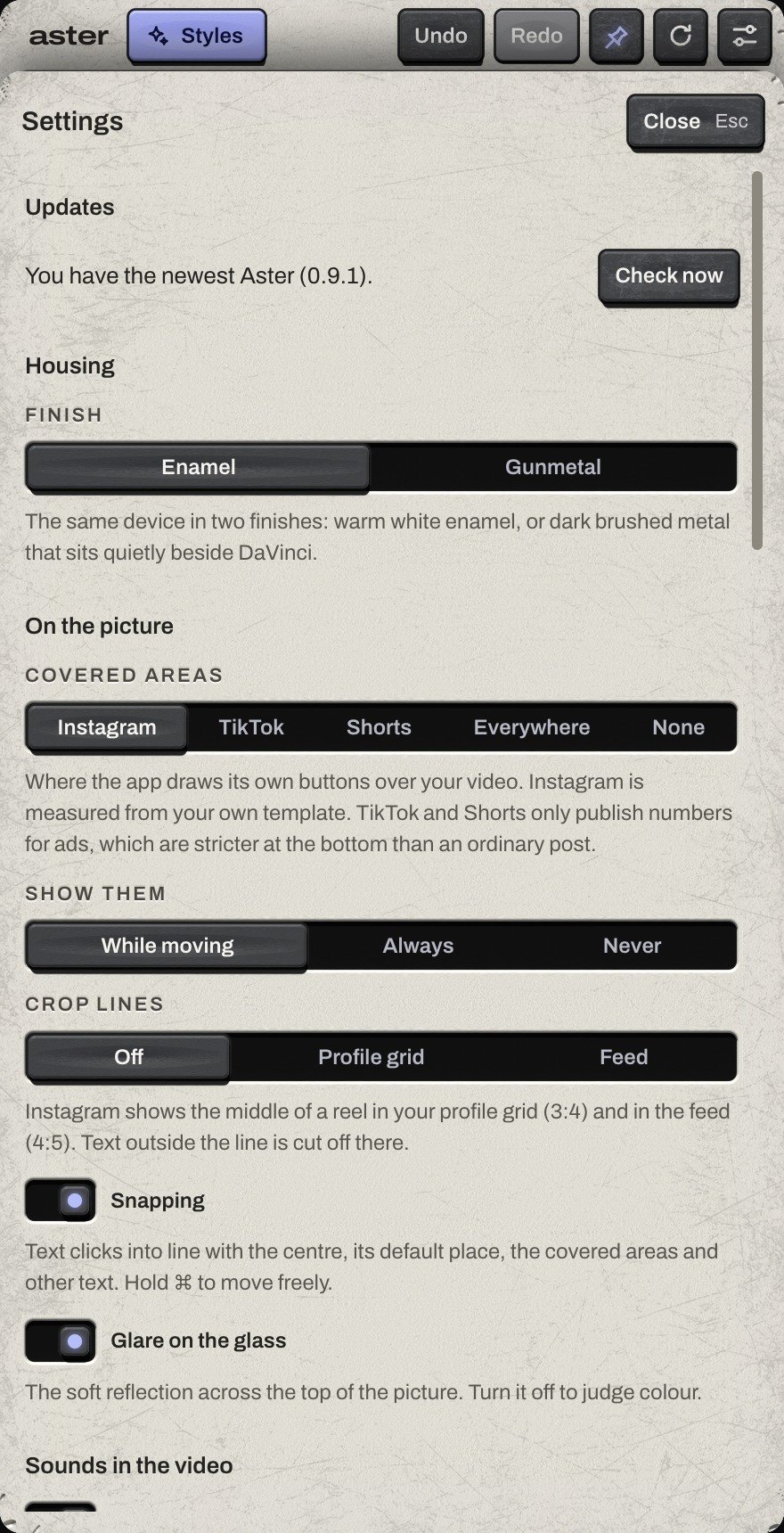
Aster reads the shape of your timeline. On 9:16 it keeps captions clear of Instagram, TikTok and Shorts buttons (Settings › Covered areas shows where they are, and the crop lines for the profile grid and feed). On 4:5, square and 16:9 it places captions and big text lower and sizes them for the frame, a lower third on a wide video.
The panel itself stays upright for every shape, so it fits beside DaVinci; a wide video shows across its screen. Drag a corner of the panel to make it bigger or smaller: it keeps its shape and opens at that size next time.
Settings
Settings
- Updates
- New versions show up here with their own download. Your looks, settings and captions stay as they are.
- Licence
- The key this Mac uses. Free this Mac before you move Aster to another one.
- Shortcuts
- Every keyboard shortcut, in one list.
- Uninstall
- Opens the page with the uninstaller. Captions you made stay in your projects.
Help
If something is not right
- Can't reach DaVinci
- Preferences › System › General, External scripting using: Local, then reopen DaVinci.
- No Aster in the menu
- Quit DaVinci completely and open it again after installing. Aster runs in DaVinci Resolve Studio only.
- Text is hidden
- A text track switched off in DaVinci hides its text. Aster says so and switches it back on with one press.
- Key not accepted
- Check it against your purchase email. Already on two Macs: free one in Settings or your account, then activate again.
Still stuck, or something odd, slow or confusing: reply to the email from your purchase. Amro